How to Open Big CSV Files: Proven Methods That Actually Work in 2025
Struggling with Large CSV Files? You're Not Alone

You've just exported a massive dataset from your database — 2 million rows of customer transactions. You double-click the CSV file, Excel struggles for a minute, then crashes. Or worse, it opens but only shows the first few rows without any warning.
Maybe you've tried Google Sheets, only to hit the dreaded "This file is too large to open" error. Or perhaps you've watched your laptop freeze while attempting to load a 1.5GB log file for debugging.
You're not alone. These scenarios happen daily to data analysts, developers, marketers, accountants, and business users worldwide:
- 📊 Data analysts who need to reconcile millions of sales records but Excel caps at 1,048,576 rows
- 🔍 Developers debugging production logs that span hundreds of megabytes
- 📈 Marketers trying to analyze years of campaign data exported from their CRM
- 🏢 Accountants facing end-of-year reports with millions of transaction records
- 💼 Business users needing to merge large customer datasets for reporting
If you've ever stared at a spinning cursor wondering why your computer can't handle a "simple" CSV file, this guide is for you.
Why Large CSV Files Break Your Workflow
The problem isn't your data — it's your tools. Most spreadsheet applications were designed decades ago when a "large" file meant a few thousand rows. Today's datasets routinely contain millions of records, and traditional software simply can't keep up.
Here's what you're up against:
Software Limits Hit Hard
- Excel's row ceiling: Maxes out at 1,048,576 rows — anything beyond gets silently truncated
- Google Sheets caps at 10 million cells: That's roughly 100,000 rows with 100 columns
- Memory overload: Applications try to load entire files into RAM, causing freezes and crashes
Your Hardware Takes a Beating
Opening a 500MB CSV file forces your computer to allocate gigabytes of memory for parsing, formatting, and rendering. The result? Frozen screens, spinning wheels, and forced restarts.
Data Integrity Gets Compromised
When software crashes mid-process, you risk corrupted files or partial saves. Some programs silently truncate data without warning — you might not realize you're missing 2 million rows until it's too late.
Parsing Gets Messy
Large CSV files often contain edge cases that break standard parsers:
- Embedded quotes and commas: Values like
"Smith, John"confuse delimiter detection - Multiline fields: Text with line breaks splits records incorrectly
- Mixed encodings: UTF-8, Latin-1, and ASCII in the same file cause garbled characters
- Nested data: JSON or XML embedded in cells creates parsing nightmares
How to Pick the Right Tool for Your Large CSV Files
Not all CSV tools are created equal. The best choice depends on your file size, technical skills, and what you need to accomplish. Here's what to consider:
| Factor | What to Look For |
|---|---|
| File Size Support | Can it handle your data? Some tools cap at 1M rows, others scale to billions |
| Speed | Does it load files in seconds or minutes? Streaming vs. full-load matters |
| Learning Curve | Do you need code skills, or is it point-and-click? |
| Cost | Free/open-source vs. paid — and what features are locked behind paywalls |
| Platform | Windows, macOS, Linux, or browser-based? |
| Data Location | Local files only, or can it access cloud storage and network shares? |
| Analysis Features | Basic viewing, or full filtering, pivots, and formulas? |
Practice with Real Large Datasets
Want to test these tools before committing? Here are some publicly available large CSV files:
- NYC Taxi Trip Data — Millions of trip records, perfect for testing
- Kaggle Datasets — Thousands of datasets across every industry
- US Census Bureau Data — Population and demographic data at scale
- COVID-19 Open Data — Time-series data with millions of records
Quick Decision Tree: Which Tool Should You Use?
Not sure where to start? Answer these questions:
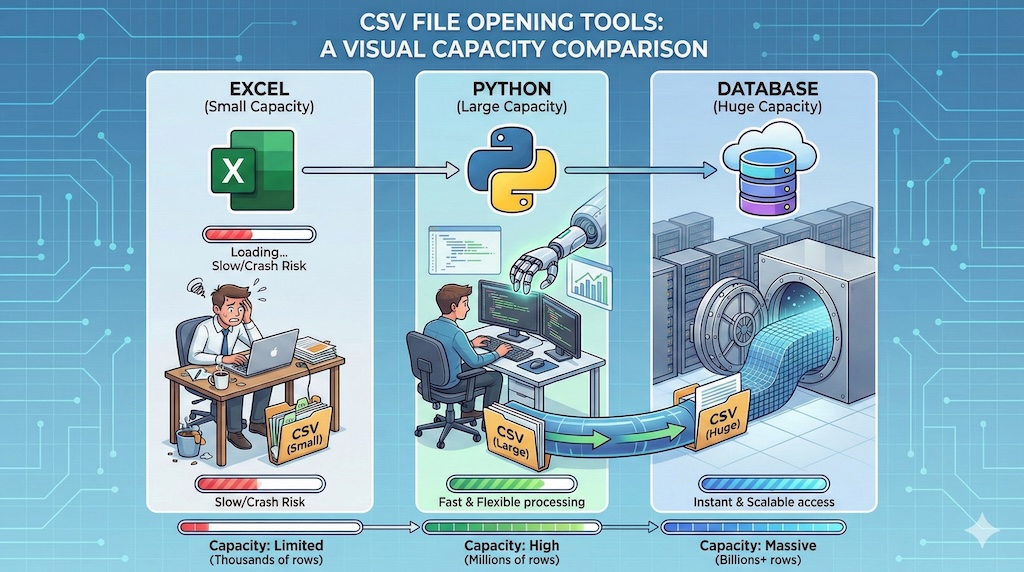
How many rows does your file have?
| File Size | Best Options | Jump to Section |
|---|---|---|
| Under 100K rows | Excel, Google Sheets, LibreOffice | Section I |
| 100K – 1M rows | Power Query, Zoho Sheet, Modern CSV | Section I, Section IV |
| 1M – 10M rows | Tad Viewer, SQLite, Python pandas | Section IV, Section VI |
| 10M – 100M rows | PostgreSQL, Python Polars/Dask, xsv | Section VI, Section VII |
| 100M+ rows | PostgreSQL, Dask, distributed computing | Section VI, Section VII |
What do you need to do with the data?
| Task | Best Tool | Section |
|---|---|---|
| Just view/browse | EmEditor, Large Text File Viewer | Section III |
| Filter and sort | Modern CSV, Tad Viewer | Section IV |
| Clean messy data | OpenRefine | Section IV |
| Run SQL queries | SQLite, Tad Viewer, csvsql | Section IV, Section VI |
| Automate processing | xsv, csvkit, Python | Section V, Section VII |
| Collaborate with team | Google Sheets (small), PostgreSQL (large) | Section II, Section VI |
| Statistical analysis | R data.table, Python pandas | Section VII |
Can you write code?
- No → Start with Section I (spreadsheets) or Section IV (CSV apps)
- Yes, basic → Try Section V (CLI tools like xsv)
- Yes, comfortable → Go straight to Section VII (Python/R)
Below, we've organized solutions into two categories: no-code tools for those who prefer visual interfaces, and code-based methods for developers and data engineers who want maximum control.
I. Spreadsheet Alternatives That Handle More Rows
If you're comfortable with Excel but frustrated by its limits, these alternatives offer familiar interfaces with better large-file support.
Power Query (Built into Excel)
Before abandoning Excel entirely, try its secret weapon. Power Query lets you filter and transform data before loading it into your worksheet — meaning you can work with files that would normally crash Excel.
How to access it: Data → Get Data → From File → From Text/CSV
Why it works:
- Loads data in streaming chunks, not all at once
- Filter out rows you don't need before import
- Transform columns on-the-fly
- Connect directly to databases, APIs, and cloud storage
Real-world example: Got a 3 million row sales file? Use Power Query to filter only Q4 2024 transactions, aggregate by region, and load just 50,000 summarized rows into Excel.
Limitation: Still bound by Excel's 1M row limit for the final output.
LibreOffice Calc
The free, open-source Excel alternative that runs on Windows, Mac, and Linux.
| Comparison | Excel | LibreOffice Calc |
|---|---|---|
| Row Limit | 1,048,576 | 1,048,576 |
| Cost | $150+/year | Free |
| Linux Support | ❌ | ✅ |
| Macro Compatibility | Native VBA | Partial VBA + native |
Best for: Users who need Excel-like features without the subscription cost, especially on Linux systems.
II. Browser-Based Tools (No Installation Required)
Perfect for quick analysis when you can't install software or need to share access with teammates.
Google Sheets
The go-to for collaboration, but know its limits before uploading that massive export.
Hard limits:
- 10 million cells maximum (a 100-column file caps at 100K rows)
- 100MB upload limit for CSV
- Performance degrades noticeably past 50,000 rows
Where it shines: Real-time collaboration on datasets under 50MB. Share a link, and your whole team can filter and analyze simultaneously.
Zoho Sheet
Google Sheets' lesser-known competitor with slightly better large-file handling.
Key differences:
- 2 million cell limit (vs Google's 10M, but often faster)
- Better offline support
- More generous free tier storage
- Cleaner interface for data-heavy work
Limitation: 100,000 row cap for CSV imports still applies.
CSV Explorer & Similar Web Tools
Dozens of browser-based CSV viewers exist. They're useful for quick peeks but hit browser memory limits fast.
Typical constraints:
- Files over 50-100MB will freeze your browser tab
- Limited to viewing and basic filtering
- Data stays in browser memory (privacy consideration)
Use case: Quick validation that a file exported correctly before processing elsewhere.
III. Text Editors That Handle Massive Files
When you need to view or make quick edits to multi-gigabyte files, specialized text editors are your best friend.
EmEditor (Windows) — The 248GB Champion
The gold standard for massive file handling. EmEditor uses a "Large File Controller" that streams content instead of loading everything into RAM.
What makes it special:
- Opens 100GB+ files in seconds
- CSV-aware column editing
- Regex find/replace across billions of lines
- Split view to compare sections of the same file
Price: $40 one-time or subscription options
Real-world test: A 50GB server log opens in under 10 seconds. Try that in Notepad++.
Large Text File Viewer (Windows) — Free & Lightweight
If you just need to look at a huge file without editing, this free tool is perfect.
What it does:
- Opens any size file instantly
- Minimal RAM usage (streams from disk)
- Basic search functionality
- That's it — and that's the point
Limitation: Read-only. No editing, no analysis. Pure viewing.
UltraEdit (Windows, Mac, Linux)
A professional text editor that balances large file support with advanced features.
Highlights:
- Handles 4GB+ files smoothly
- Hex editing for binary inspection
- Column mode for CSV manipulation
- Cross-platform consistency
Price: ~$100 one-time
IV. Purpose-Built CSV Applications
These tools are designed specifically for CSV workflows — not general text editing or spreadsheet work.
Tad Viewer — SQL Meets Spreadsheet
An underrated gem. Tad treats your CSV like a database, letting you write SQL queries against the data while showing results in a spreadsheet view.
Standout features:
- Write
SELECT * FROM data WHERE amount > 1000on any CSV - Pivot tables without Excel's complexity
- Column statistics at a glance
- Buttery smooth scrolling on million-row files
Price: Free and open source
Best for: Analysts who think in SQL but work with CSV files.
Modern CSV — Clean and Fast
A no-nonsense CSV editor that prioritizes speed and simplicity.
Why users love it:
- Opens multi-GB files without drama
- Table interface feels like a lightweight Excel
- Find duplicates, sort, filter — all the basics done well
- Works on Windows, Mac, and Linux
Price: Free for personal use, $30 for commercial
OpenRefine — The Data Cleaning Powerhouse
Originally built by Google, OpenRefine specializes in messy data transformation.
Unique capabilities:
- Cluster similar values (fix "NYC", "New York", "new york" in one click)
- Track every transformation with undo history
- Reconcile against external databases (Wikidata, etc.)
- Handle millions of rows
Best for: Data cleaning nightmares — inconsistent formatting, duplicate detection, standardization.
Price: Free and open source
V. Command-Line Tools for Automation
When you need to process CSV files in scripts, pipelines, or scheduled jobs, CLI tools offer unmatched speed and flexibility.
xsv — Blazing Fast (Written in Rust)
The modern standard for CLI CSV processing. xsv is dramatically faster than alternatives.
Installation:
# macOS
brew install xsv

# Linux (download from GitHub releases)
# Windows (download .exe from GitHub)
Common operations:
# Preview first 10 rows with headers
xsv slice -l 10 transactions.csv | xsv table

# Count rows (near-instant on GB files)
xsv count huge_dataset.csv

# Select specific columns
xsv select date,amount,category sales.csv > filtered.csv

# Filter rows where amount > 1000
xsv search -s amount '[0-9]{4,}' sales.csv

# Get column statistics
xsv stats inventory.csv | xsv table
Performance: Processes 1GB files in seconds. Seriously.
csvkit — The Swiss Army Knife
A Python-based toolkit with more features than xsv, trading some speed for versatility.
Installation:
pip install csvkitPower moves:
# Run SQL queries directly on CSV files
csvsql --query "SELECT category, SUM(amount) FROM sales GROUP BY category" sales.csv

# Convert to/from JSON, Excel, SQL
in2csv data.xlsx > data.csv
csvjson data.csv > data.json

# Join two CSV files
csvjoin -c customer_id orders.csv customers.csv

# Generate statistics report
csvstat --median --freq revenue.csv
Unix Classics: awk, sed, grep
Already installed on every Mac and Linux system. Perfect for quick one-liners.
# Extract columns 1, 3, 5 (awk)
awk -F',' '{print $1","$3","$5}' data.csv

# Filter rows containing "ERROR" (grep)
grep "ERROR" server_logs.csv > errors_only.csv

# Replace all "NULL" with empty string (sed)
sed 's/NULL//g' export.csv > cleaned.csv

# Count occurrences of each unique value in column 2
awk -F',' '{count[$2]++} END {for (val in count) print val, count[val]}' data.csv
VI. Database Import for Serious Analysis
When files exceed 1GB or you need complex queries, importing into a database is often the smartest move.
SQLite — Zero Setup, Full SQL Power
A file-based database that requires no server. Perfect for local analysis.
Quick import workflow:
# Create database and import CSV in one shot
sqlite3 analysis.db <<EOF
.mode csv
.import sales_2024.csv sales
.schema sales
SELECT COUNT(*) FROM sales;
EOF
Query your data:
-- Top 10 customers by revenue
SELECT customer_id, SUM(amount) as total
FROM sales
GROUP BY customer_id
ORDER BY total DESC
LIMIT 10;

-- Monthly trends
SELECT strftime('%Y-%m', date) as month, SUM(amount)
FROM sales
GROUP BY month;
GUI options: DB Browser for SQLite, DBeaver, TablePlus
PostgreSQL — Enterprise-Grade Analysis
When you need window functions, JSON queries, or multi-user access.
Fast CSV import:
-- Create table matching your CSV structure
CREATE TABLE transactions (
    id SERIAL PRIMARY KEY,
    date DATE,
    amount DECIMAL(10,2),
    category TEXT
);

-- Bulk import (extremely fast)
COPY transactions FROM '/path/to/data.csv'
WITH (FORMAT csv, HEADER true);

-- Now run complex analytics
SELECT
    category,
    SUM(amount) as total,
    AVG(amount) as avg_transaction,
    COUNT(*) as num_transactions
FROM transactions
WHERE date >= '2024-01-01'
GROUP BY category
ORDER BY total DESC;
MySQL — The Web Developer's Choice
Familiar to anyone with PHP/WordPress background. Solid performance, huge community.
Import syntax:
LOAD DATA INFILE '/var/lib/mysql-files/data.csv'
INTO TABLE my_table
FIELDS TERMINATED BY ','
ENCLOSED BY '"'
LINES TERMINATED BY '\n'
IGNORE 1 ROWS;
Tip: MySQL's LOAD DATA INFILE is 10-20x faster than INSERT statements.
VII. Programming Languages for Full Control
When you need custom logic, automation, or integration with other systems.
Python — The Data Science Standard
Python dominates data analysis for good reason: readable syntax, incredible libraries, and a massive community.
pandas — Your Daily Driver
import pandas as pd

# Basic read (works for files that fit in memory)
df = pd.read_csv('sales.csv')

# Optimize memory by specifying dtypes
df = pd.read_csv('sales.csv', dtype={
    'customer_id': 'int32',
    'amount': 'float32',
    'category': 'category'  # Huge memory savings for repeated strings
})

# Process in chunks for files larger than RAM
results = []
for chunk in pd.read_csv('huge_file.csv', chunksize=100_000):
    # Filter and aggregate each chunk
    summary = chunk.groupby('category')['amount'].sum()
    results.append(summary)

# Combine all chunk results
final = pd.concat(results).groupby(level=0).sum()
Polars — The Speed Demon
A newer library that's often 10-50x faster than pandas.
import polars as pl

# Read CSV (automatically optimized)
df = pl.read_csv('large_file.csv')

# Lazy evaluation for complex pipelines
result = (
    pl.scan_csv('huge_file.csv')  # Don't load yet
    .filter(pl.col('amount') > 100)
    .group_by('category')
    .agg(pl.sum('amount'), pl.count())
    .collect()  # Execute the optimized query
)
Dask — Scale Beyond RAM
When your data doesn't fit in memory, Dask parallelizes pandas across cores or clusters.
import dask.dataframe as dd

# Works like pandas, but processes in parallel
df = dd.read_csv('*.csv')  # Read multiple files as one dataset
result = df[df['status'] == 'completed'].groupby('region').sum()
result.compute()  # Trigger execution
R — Statistical Computing Powerhouse
Data scientists and statisticians often prefer R for analysis.
data.table — Fastest R Option
library(data.table)

# fread is incredibly fast
dt <- fread("large_file.csv")

# Concise syntax for complex operations
result <- dt[amount > 100,
             .(total = sum(amount), count = .N),
             by = category][order(-total)]
tidyverse — Readable Pipelines
library(tidyverse)

read_csv("sales.csv") %>%
  filter(date >= "2024-01-01") %>%
  group_by(category, month = floor_date(date, "month")) %>%
  summarize(
    revenue = sum(amount),
    transactions = n(),
    avg_order = mean(amount)
  ) %>%
  arrange(desc(revenue))
Technical Strategies to Process Big CSV Files
Beyond choosing the right tool, these techniques can significantly improve performance when working with large CSV files.
1. Use A Sample of your CSV data
When developing or testing, work with a representative sample first.
# Get first 10,000 rows using head
head -n 10000 large.csv > sample.csv

# Random sample with shuf
shuf -n 10000 large.csv > random_sample.csv
2. Split Large CSV Files into Smaller Chunks
Breaking files into manageable pieces makes processing easier.
# Split by number of lines
split -l 100000 large.csv chunk_

# Split by size
split -b 100M large.csv chunk_
3. Compress CSV Files to Reduce Size
Compression can dramatically reduce file size for storage and transfer.
# Compress with gzip
gzip large.csv  # Creates large.csv.gz

# Decompress
gunzip large.csv.gz

# Compress with better ratio using xz
xz large.csv  # Creates large.csv.xz
Typical Compression: CSV files often compress 80-90% due to repetitive text data.
4. Convert CSV to Optimized Formats Like Parquet
Binary columnar formats are much more efficient for large datasets.
Python example:
import pandas as pd

# Read CSV and save as Parquet
df = pd.read_csv('large.csv')
df.to_parquet('large.parquet', compression='snappy')

# Read Parquet (much faster)
df = pd.read_parquet('large.parquet')
Advantages of Parquet:
- 50-90% smaller file size
- Columnar storage for faster column queries
- Built-in compression
- Schema preservation
5. Process Data in Chunks
Process large files piece by piece to avoid memory issues.
Python example:
import pandas as pd

chunk_size = 50000
output_file = 'filtered.csv'
first_chunk = True

for chunk in pd.read_csv('large.csv', chunksize=chunk_size):
    # Process chunk
    filtered = chunk[chunk['value'] > 100]

    # Write to output
    filtered.to_csv(output_file,
                   mode='a' if not first_chunk else 'w',
                   header=first_chunk,
                   index=False)
    first_chunk = False
6. Speed Up File Loading with Memory Mapping
Memory mapping allows accessing file data without loading everything into RAM.
Python example:
import numpy as np

# Memory map a numeric CSV
data = np.loadtxt('numeric_data.csv', delimiter=',',
                  skiprows=1, max_rows=100000)
7. Parallel Processing to Handle More Data at Once
Utilize multiple CPU cores for faster processing.
Python with multiprocessing:
from multiprocessing import Pool
import pandas as pd

def process_chunk(filename):
    chunk = pd.read_csv(filename)
    # Process chunk
    return chunk[chunk['value'] > 100]

# Process multiple chunks in parallel
with Pool(4) as p:
    results = p.map(process_chunk, chunk_files)

final_result = pd.concat(results)
8. Stream Data for Real-Time Processing
For continuous data processing without loading full file.
Node.js example:
const fs = require("fs");
const csv = require("csv-parser");

fs.createReadStream("large.csv")
  .pipe(csv())
  .on("data", (row) => {
    // Process each row as it's read
    if (row.value > 100) {
      console.log(row);
    }
  })
  .on("end", () => {
    console.log("CSV file processed");
  });
A Better Way: Typo Monster for Large CSV Files
After trying dozens of tools, we built Typo Monster — a desktop app designed specifically for the challenges covered in this guide.
Why We Built It
Most CSV tools fall into two camps:
- Spreadsheets that crash on files over 1M rows
- Code-based tools that require programming knowledge
We wanted something in between: blazing-fast performance with a point-and-click interface.
What Makes Typo Monster Different
| Feature | Typo Monster | Excel | Python pandas |
|---|---|---|---|
| 15M+ row files | ✅ Opens in seconds | ❌ Crashes | ⚠️ Requires chunking code |
| Learning curve | Point and click | Familiar | Needs coding |
| Privacy | 100% local | Local | Local |
| SQL queries | Built-in + AI assist | ❌ | Manual setup |
| File operations | One-click split/merge | Manual | Write scripts |
Try It Free
Typo Monster is free for core features with no row limits on viewing and basic operations.
👉 Download for macOS and open your first large CSV in seconds.